Welcome 
Basics
The Seed Language is used for snippets and plandomizers.
It's currently available in the v5 beta.
Install folder
The randomizer installs a set of default snippets at <install>/seedgen/snippets (online: snippets) and default plandomizers at <install>/seedgen/plandos. <install> is where you installed the randomizer.
You shouldn't modify these folders, but they include utility snippets like goal_mode_core that you may need to reference when creating your own custom snippets.
User folder
You can add custom snippets at <user>/seedgen/snippets and custom plandomizers at <user>/seedgen/plandos. You can find the <user> folder with one of the small icon buttons in the launcher.
This is where you would add any snippets and plandomizers you created or have received from other players. If the seedgen/snippets or seedgen/plandos folder is missing, you can create it yourself.
You can try it out by creating <user>/seedgen/snippets/test.wotws with the following content:
#name("Test")
on spawn item_message("Test successful!")
It should show up in the seed generator. Enable it, generate and see if the message appears on spawn.
Snippets
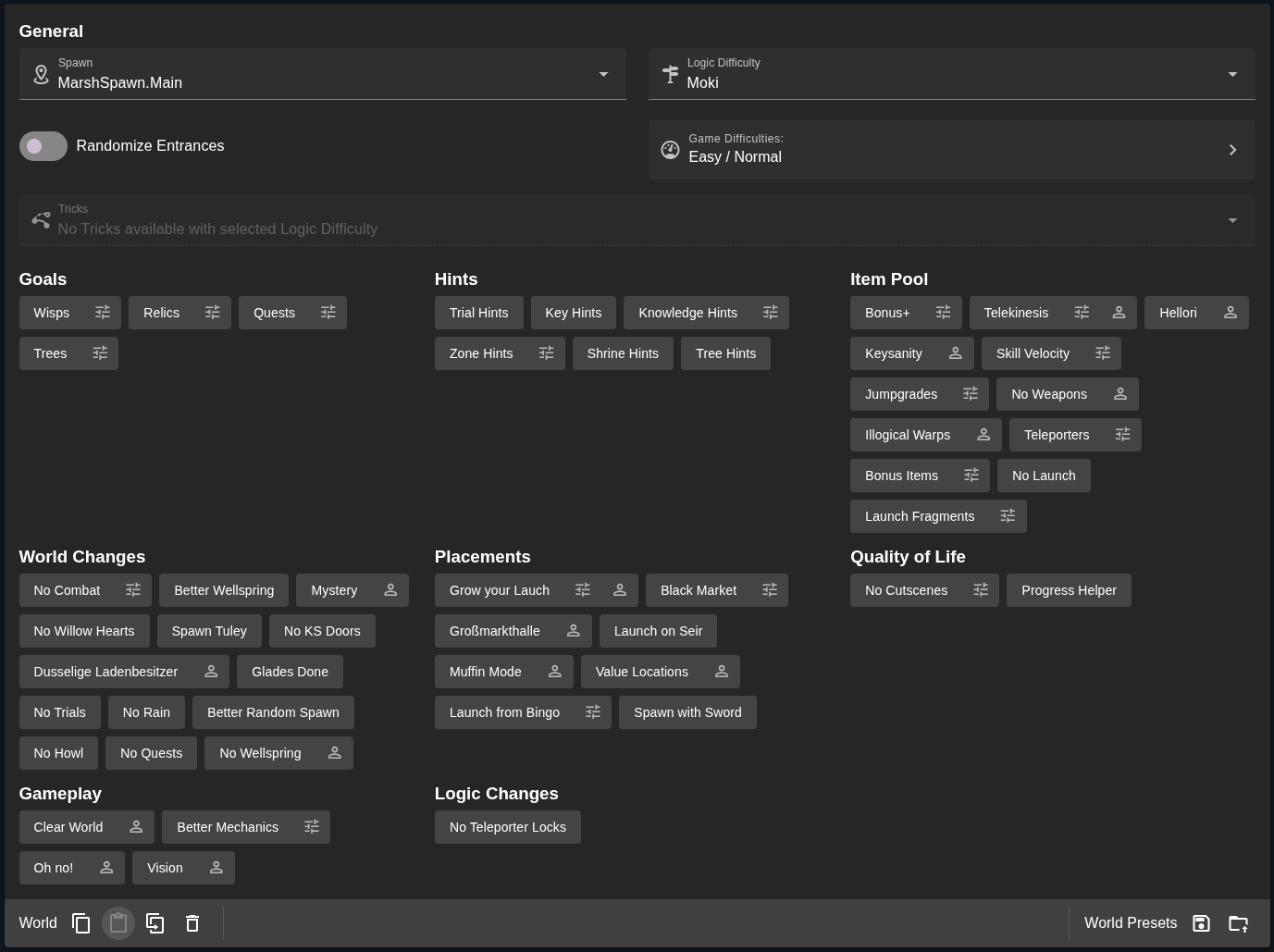
Snippets act like settings you can enable when generating a seed - Everything in the seed generator from Goals to Logic Changes is a snippet, which gives you an idea of the various things they can do.
If you add .wotws files to <user>/seedgen/snippets, they should appear in the seed generator and have a special icon to show that they are user snippets:
Plandomizers
Plandomizers define the entire seed. It's a portmanteau of planned and randomizer!
Playing Plandomizers
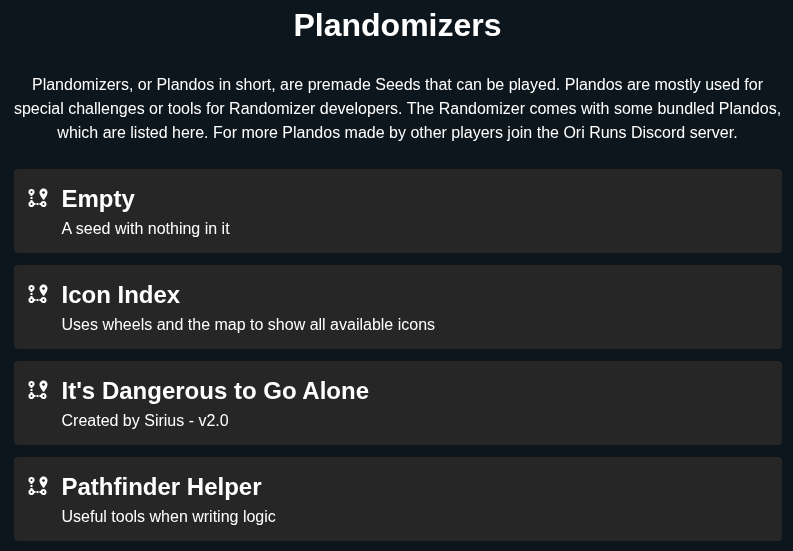
If you download a plandomizer, it should already be compiled and ready to play, which you can recognize from the .wotwr extension.
You can add it to <user>/seedgen/plandos and it should appear in the Plandomizers tab of the launcher. If you have the file extension configured, you can also start .wotwr files directly with a double click, but having them in the expected directory may be useful when wanting to update the plandomizer.
Creating Plandomizers
When creating your own plandomizer, you will first write it into one or more .wotws files - those can be whereever you want.
Before playing it or sending it to other players, you have to compile it into a playable .wotwr file.
This currently requires the command-line seed generator at <install>/seedgen/wotw-seedgen (or <install>/seedgen/wotw-seedgen.exe on Windows). You may add it to your path for convenience. Then run wotw-seedgen plando <path> for a simple compile or wotw-seedgen plando --help for more info. (again, wotw-seedgen.exe on Windows).
By default, the finished .wotwr file should be written directly into <user>/seedgen/plandos.
An example workflow could be:
wotw-seedgen plando <path> -w -l(or--ngssinstead of-lif the file extension is not configured)- Start a savefile for testing if it doesn't exist already
- Make changes in your plandomizer source
- Reload Seed in-game (default bind: F5)
- Repeat 3. and 4.
Keep in mind that on spawn will not trigger if you Reload Seed on an already started savefile. If you want to add new on spawn triggers without starting a new savefile, you can add a temporary on reload which will trigger from Reload Seed.
Important note: seed_core is a snippet that sets up many randomizer essentials such as enabling fast travel. It's always included in generated seeds, but in your plando you need to explicitely !include("seed_core"). You should almost always do this!
Editor support
When writing nontrivial snippets or plandomizers, you should use a code editor with special language features - this will give you advantages like syntax highlighting and inline errors on every save.
The seed generator includes an implementation of the Language Server Protocol, which is compatible with many code editors.
VSCode
If you use VSCode, we provide a language extension. Scroll down in the linked page for instructions.
Other editors
Installation depends on your editor. At some point you will have to tell it how to start the language server: <install>/seedgen/wotw-seedgen seed-lsp (or <install>/seedgen/wotw-seedgen.exe seed-lsp on Windows).
Some editors may also recognize the VSCode extension folder structure if you provide them with the root. To do this, you can download the VSCode extension linked above, unpack the .vsix (which is really a zip), then point your editor to the extension folder containing package.json.
UberStates
Ori 2 stores its world data in UberStates. It's important to understand them because they are referenced throughout the language.
UberState identifiers
Every UberState has a unique identifier consisting of two numbers. 21786|49485 is the UberState that tracks whether you collected the spirit light orb right of spawn.
on 21786|49485 item_message("right is right!")
Using the identifiers always works, but you may prefer the other methods below for better readability.
UberState names
Every UberState has a name. The name of 21786|49485 is swampStateGroup.smallExpA. However, names are not always unique. Here, 21786|52026 (an unused vanilla UberState) is also called swampStateGroup.smallExpA. In such cases, attempting to use the name will produce an error. But names are still often useful, especially with UberStates added by the randomizer.
on player.maxHealth >= 100 item_message("You look healthy today!")
UberState aliases
Some UberStates have aliases, which are defined in <install>/seedgen/logic/pickups.csv (online: pickups.csv) and <install>/seedgen/logic/states.csv (online: states.csv). You cannot add custom aliases.
The pickup location Marsh.Spawn.FirstSL is an alias for 21786|49485. By convention, aliases start with capital letters so you can tell them apart from "normal" UberState names.
// Equivalent to the earlier example, but easier to read
on Marsh.Spawn.FirstSL item_message("right is right!")
If an UberState has an alias, this usually means logic was written for it. The example below removes the bone wall between spawn and Opher:
on spawn store(Marsh.CollapsingLog.OpherWall, true)
Since Marsh.CollapsingLog.OpherWall is an alias (starts with a capital letter), you can assume seedgen will understand the consequences and adjust logic accordingly.
Some aliases stand for a comparison, for instance Reach.HandToHand.Soup stands for 14019|26318 >= 4.
on Reach.HandToHand.Soup item_message("You have done well")
on gameStateGroup.gameFinished if Reach.HandToHand.Soup == false item_message("You won... but at what cost?")

// You cannot do this
// on binding1 store(Reach.HandToHand.Soup, true)

// You can do this, but keep in mind that it will set the quest to this step, which can skip earlier steps or erase later ones.
on binding1 store(questUberStateGroup.tradeSequenceQuest, 4)
We're still in the process of figuring out how we should call all the aliases, so feedback is welcome!
Finding UberStates
If you need more than the states in pickups and states, all UberStates are listed in <install>/seedgen/uber_state_dump.json (online: uber_state_dump.json). If you have Editor support set up, you can use autocomplete to search through them as well.
You can also find UberStates using the Pathfinder Helper, which comes installed with the randomizer. It has a wheel item to turn on UberState logging, which will show UberStates changing, for example when breaking a wall. It also writes them to <user>/logs/client.log for you to copy, or you can use autocomplete after learning the name.
Some useful groups to know in general are player (health, energy, mouse position, ...), modifications (rando modifications to vanilla behaviours) and rng (random number generator).
Triggers
on <trigger> <action>
Example
// When collecting the item right of spawn, the player will get 50 Spirit Light.
on Marsh.Spawn.FirstSL spirit_light(50)
Notes
There are three different types of triggers:
Client Events
on <client_event> <action>
Example
// This is what the Spawn With Sword snippet does.
on spawn skill(Sword)
Notes
Client Events are special triggers for specific tasks. These are all of them:
spawn- Trigger when starting a new file,reload- Trigger when starting a new file or loading the seed into an active file,respawn- Trigger when respawning after death, void etc.,binding1- Trigger on keybind,binding2- Trigger on keybind,binding3- Trigger on keybind,binding4- Trigger on keybind,binding5- Trigger on keybind,teleport- Trigger on Teleport,progress_message- Trigger on the Show Progress keybind,tick- Trigger every frame,inkwater_trial_text_request- Trigger when the Inkwater trial reward text should be updated,hollow_trial_text_request- Trigger when the Hollow trial reward text should be updated,wellspring_trial_text_request- Trigger when the Wellspring trial reward text should be updated,woods_trial_text_request- Trigger when the Woods trial reward text should be updated,reach_trial_text_request- Trigger when the Reach trial reward text should be updated,depths_trial_text_request- Trigger when the Depths trial reward text should be updated,luma_trial_text_request- Trigger when the Luma trial reward text should be updated,wastes_trial_text_request- Trigger when the Wastes trial reward text should be updated,
UberState Bindings
on change <uber_state> <action>
Example
// Whenever the player gains or loses gorlek ore they will see a message with their current amount.
on change player.gorlekOre item_message("I love ore and now I have " + player.gorlekOre)
Conditions
on <condition> <action>
Examples
// When collecting the item right of spawn, the player will get a gorlek ore.
on Marsh.Spawn.FirstSL gorlek_ore()
// Once the player surpasses 4000 spirit light, they will see a message.
on player.spiritLight > 4000 item_message("You're rich!")
Notes
Conditions trigger when their value changes from false to true.
For example, on player.spiritLight > 4000 will trigger when the spirit light changes from 4000 to 4100, but it won't trigger again if it then changes from 4100 to 4150. If the player loses spirit light, dropping to 4000 or less and then goes above 4000 a second time, it will trigger again. on Marsh.Spawn.FirstSL || Marsh.Spawn.LeftHF will trigger when the player collects the first of these two pickups, but not again when they collect the other. on Marsh.Spawn.FirstSL && Marsh.Spawn.LeftHF will only trigger once the player collected both pickups.
Actions
Actions are instructions for the randomizer, such as giving items, showing messages or changing UberStates.
There are three different types of actions:
Multis
{ <action>... }
Example
on Marsh.Spawn.LeftHF {
    spirit_light(1)
    item_message("That's why you go team right...")
}
Ifs
if <condition> <action>
Example
// This will show a message everytime the player gains or loses spirit light and has more than 4000 afterwards.
// The braces are just for easier reading.
on change player.spiritLight {
 if player.spiritLight > 4000 item_message("Spend your money already or I'll annoy you forever!")
}
Function calls
<function_name>(<args>...)
Example
// This function is called "item_message_with_timeout" and has two arguments:
// The message and the timeout until it disappears in seconds.
on Marsh.Spawn.LeftHF item_message_with_timeout("The emptyness haunts you...", 60)
Notes
See Standard Functions and Function Definitions for more details.
Standard Functions
Common Items
spirit_light
spirit_light(amount: Integer)
Example
on binding1 spirit_light(50)
// Equivalent to:
on binding1 {
    store(player.spiritLight, player.spiritLight + 50)
    item_message(spirit_light_string(50))
}
gorlek_ore
gorlek_ore()
Example
on binding1 gorlek_ore()
// Equivalent to:
on binding1 {
    store(player.gorlekOre, player.gorlekOre + 1)
    item_message(gorlek_ore_string())
}
keystone
keystone()
Example
on binding1 keystone()
// Equivalent to:
on binding1 {
    store(player.keystones, player.keystones + 1)
    item_message(keystone_string())
}
shard_slot
shard_slot()
Example
on binding1 shard_slot()
// Equivalent to:
on binding1 {
    store(player.shardSlots, player.shardSlots + 1)
    item_message(shard_slot_string())
}
health_fragment
health_fragment()
Example
on binding1 health_fragment()
// Equivalent to:
on binding1 {
    store(player.baseMaxHealth, player.baseMaxHealth + 5)
    store(player.health, player.maxHealth)
    item_message(health_fragment_string())
}
energy_fragment
energy_fragment()
Example
on binding1 energy_fragment()
// Equivalent to:
on binding1 {
    store(player.baseMaxEnergy, player.baseMaxEnergy + 0.5)
    store(player.energy, player.maxEnergy)
    item_message(energy_fragment_string())
}
skill
skill(skill: Skill)
Example
on binding1 skill(Shuriken)
// Equivalent to:
on binding1 {
    store(skills.shuriken, true)
    item_message(skill_string(Shuriken))
}
Notes
See Skills for possible values.
shard
shard(shard: Shard)
Example
on binding1 shard(Deflector)
// Equivalent to:
on binding1 {
    store(shards.shuriken, true)
    item_message(shard_string(Deflector))
}
Notes
See Shards for possible values.
teleporter
teleporter(teleporter: Teleporter)
Example
on binding1 teleporter(Shriek)
// Equivalent to:
on binding1 {
    store(Willow.Shriek.Teleporter, true)
    item_message(teleporter_string(Shriek))
}
Notes
See Teleporters for possible values.
clean_water
clean_water()
Example
on binding1 clean_water()
// Equivalent to:
on binding1 {
    store(worldEvents.cleanWater, true)
    item_message(clean_water_string())
}
weapon_upgrade
weapon_upgrade(weapon_upgrade: WeaponUpgrade)
Example
on binding1 weapon_upgrade(ChargeBlaze)
// Equivalent to:
on binding1 {
    store(playerUberStateGroupDescriptor.blazeChargeUpgradeLevel, 1)
    item_message(weapon_upgrade_string(ChargeBlaze))
}
Notes
See Weapon Upgrades for possible values.
Remove Items
remove_spirit_light
remove_spirit_light(amount: Integer)
Example
on binding1 remove_spirit_light(50)
// Equivalent to:
on binding1 {
    store(player.spiritLight, player.spiritLight - 50)
    item_message(remove_spirit_light_string(50))
}
remove_gorlek_ore
remove_gorlek_ore()
Example
on binding1 remove_gorlek_ore()
// Equivalent to:
on binding1 {
    store(player.gorlekOre, player.gorlekOre - 1)
    item_message(remove_gorlek_ore_string())
}
remove_keystone
remove_keystone()
Example
on binding1 remove_keystone()
// Equivalent to:
on binding1 {
    store(player.keystones, player.keystones - 1)
    item_message(remove_keystone_string())
}
remove_shard_slot
remove_shard_slot()
Example
on binding1 remove_shard_slot()
// Equivalent to:
on binding1 {
    store(player.shardSlots, player.shardSlots - 1)
    item_message(remove_shard_slot_string())
}
remove_health_fragment
remove_health_fragment()
Example
on binding1 remove_health_fragment()
// Equivalent to:
on binding1 {
    store(player.baseMaxHealth, player.baseMaxHealth - 5)
    item_message(remove_health_fragment_string())
}
remove_energy_fragment
remove_energy_fragment()
Example
on binding1 remove_energy_fragment()
// Equivalent to:
on binding1 {
    store(player.baseMaxEnergy, player.baseMaxEnergy - 0.5)
    item_message(remove_energy_fragment_string())
}
remove_skill
remove_skill(skill: Skill)
Example
on binding1 remove_skill(Shuriken)
// Equivalent to:
on binding1 {
    store(skills.shuriken, false)
    item_message(remove_skill_string(Shuriken))
}
Notes
See Skills for possible values.
remove_shard
remove_shard(shard: Shard)
Example
on binding1 remove_shard(Deflector)
// Equivalent to:
on binding1 {
    store(shards.deflector, false)
    item_message(remove_shard_string(Deflector))
}
Notes
See Shards for possible values.
remove_teleporter
remove_teleporter(teleporter: Teleporter)
Example
on binding1 remove_teleporter(Shriek)
// Equivalent to:
on binding1 {
    store(mapSegments.segment146432, false)
    store(Willow.Shriek.Teleporter, false)
    item_message(remove_teleporter_string(Shriek))
}
Notes
See Teleporters for possible values.
remove_clean_water
remove_clean_water()
Example
on binding1 remove_clean_water()
// Equivalent to:
on binding1 {
    store(worldEvents.cleanWater, false)
    item_message(remove_clean_water_string())
}
remove_weapon_upgrade
remove_weapon_upgrade(weapon_upgrade: WeaponUpgrade)
Example
on binding1 remove_weapon_upgrade(ChargeBlaze)
// Equivalent to:
on binding1 {
    store(playerUberStateGroupDescriptor.blazeChargeUpgradeLevel, 0)
    item_message(remove_weapon_upgrade_string(ChargeBlaze))
}
Notes
See Weapon Upgrades for possible values.
Messages
There are three different types of messages:
Usually item messages are used in reaction to world changes, priority messages are used in reaction to key presses and free messages are used for advanced applications with custom message layouts.
Concatenation
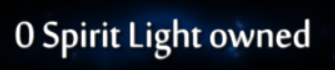
You can use concatenation to include the return values of functions and UberStates into your messages.
Example
on binding1 item_message(player.spiritLight + " Spirit Light owned")
Special characters
Certain characters have special effects on text rendering:
\ncauses a line break.*,#,@and$create color styles.<and>are used for XML tags.
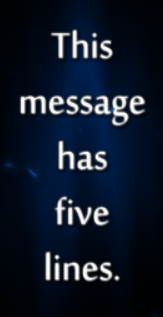
Examples
on binding1 {
    item_message("This\nmessage\nhas\nfive\nlines.")
    // Or, for better readability:
    item_message(
        "This" + "\n" +
        "message" + "\n" +
        "has" + "\n" +
        "five" + "\n" +
        "lines."
    )
}
on binding1 item_message(
    "Here be colors: *blue*, #yellow#, @red@, $green$ and <purple>purple</>.\n" +
    "As a side effect, it's impossible to show any of these symbols in a message: *#@$<>"
)

XML Tags
You can further customize messages styles with XML tags:
<hex_(color)>(text)</>will apply(color)to(text).(color)has to be 8 hexadecimal digits, two each for red, green, blue and alpha.<s_(font size)>(text)</>will apply(font size)to(text).(font size)is 1 by default.<ls_(line scale)>(text)</>will apply(line scale)to(text).(line scale)is 1 by default. Note that the parent font size is inherited, so<s_2><ls_2>textgives line scale 4 while<ls_2><s_2>textgives line scale 2.
Examples
on binding1 item_message("Other colors <hex_32cd32ff>are possible</> by using their hexadecimal rgba")

on binding1 item_message("<s_3>*BIG HUG*</>")

on binding1 item_message("<ls_1.5>Very\n" + "far\n" + "apart</>")

Controls
You can interpolate the player's current keybinds to get the correct icons for either keyboard or controller.
The vanilla game uses this in message like "Hold [Jump] to jump higher".
Example
on binding1 item_message("Press [OpenRandoWheel] to open the rando wheel.")

Notes
See also: List of possible values for keybind interpolation
Changing messages after creation
Some message properties can be changed after the message has been created:
| Creation Function | Destroy | Text | Timeout | Background | Position | Alignment | Anchor |
|---|---|---|---|---|---|---|---|
| item_message | ❌ | ❌ | ❌ | ❌ | ❌ | ❌ | ❌ |
| item_message_with_timeout | ❌ | ❌ | ❌ | ❌ | ❌ | ❌ | ❌ |
| priority_message | ❌ | ❌ | ❌ | ❌ | ❌ | ❌ | ❌ |
| controlled_priority_message |  | | | | ❌ | ❌ | ❌ |
| free_message | | | | | | | |
item_message
item_message(message: String)
Example
on binding1 item_message("Hi! You seem to have " + player.gorlekOre + " Gorlek Ore.")
Notes
Item messages will enter a queue in the top center region of the screen. If too many messages are already visible, new ones will wait until they have space to appear. By default item messages disappear after a 4 second timeout; the timeout only runs while they're visible.
item_message_with_timeout
item_message_with_timeout(message: String, timeout: Float)
Example
on binding1 item_message_with_timeout("Hi! You seem to have " + player.gorlekOre + " Gorlek Ore.", 2)
Notes
Same as item_message with a custom timeout.
priority_message
priority_message(message: String)
Example
on binding1 priority_message("Pressing this bind fills you with determination")
Notes
Priority messages will appear instantly at the top center of the screen. Only 1 priority message can be visible at once, previous ones will be destroyed. Item messages will move out of the way as necessary to show the priority message. By default priority messages disappear after a 4 second timeout.
priority_message_with_timeout
priority_message_with_timeout(message: String, timeout: Float)
Example
on binding1 priority_message_with_timeout("Pressing this bind fills you with determination", 6)
Notes
Same as priority_message with a custom timeout.
controlled_priority_message
controlled_priority_message(id: String, message: String, timeout: Float)
Notes
Same as priority_message_with_timeout with an id to change its properties later. Note that the position of a priority message cannot be changed.
free_message
free_message(id: String, message: String)
Example
on binding1 free_message("<3", "Forever with you!")
// Equivalent to:
on binding1 {
    free_message_uninitialized("<3")
    set_message_text("<3", "Forever with you!")
    free_message_show("<3", true, true)
}
Notes
Free messages will not interact with other messages in any way. They can appear on top of other messages and on top of eachother. It's your responsibility to control their position. They won't disappear by themselves, you have to set their timeout or destroy them manually.
Free messages are stored in the savefile, so you don't have to worry about your setup breaking if the player dies or reloads.
This function immediately shows the message. If you want to start with an empty, hidden message, use free_message_uninitialized.
free_message_uninitialized
free_message_uninitialized(id: String)
Example
on spawn {
    free_message_uninitialized("mouse_pos")
    free_message_show("mouse_pos", false, false) // No fade or sound effect
}
on tick set_message_text("mouse_pos", player.mouseWorldPositionX + ", " + player.mouseWorldPositionY)
Notes
Same as free_message, but starting empty and hidden. This means nothing will be visible until you use at least set_message_text and free_message_show
destroy_message
destroy_message(id: String)
Example
on binding1 free_message(
    "confirmation",
    "Just making sure, you did read this message in its entirety?\n" +
    "[Binding2] Yes"
)
on binding2 destroy_message("confirmation")
set_message_text
set_message_text(id: String, message: String)
set_message_timeout
set_message_timeout(id: String, timeout: Float)
Notes
Starts a timeout for the message to disappear.
set_message_background
set_message_background(id: String, background: Boolean)
Notes
Controls whether the background box behind the text is rendered.
Defaults to true.
set_message_corner
set_message_corner(id: String, corner: Corner)
Example
on binding1 {
    free_message("top_left", "I will appear in the top left corner")
    set_message_corner("top_left", TopLeft)
}
// Equivalent to:
on binding1 {
    free_message("top_left", "I will appear in the top left corner")
    set_message_alignment("top_left", Left)
    set_message_horizontal_anchor("top_left", Left)
    set_message_vertical_anchor("top_left", Top)
    set_message_position("top_left", 0.01, 0.01)
}
Notes
Shorthand to use one of eight predefined sets of set_message_position, set_message_alignment, set_message_horizontal_anchor and set_message_vertical_anchor.
The first word of the "corner" controls the vertical anchor and y position, the second part the horizontal anchor, alignment and x position. This is useful if you want to place a message in a corner, but it does not represent all possible useful configurations, use the underlying functions directly if you need more control.
See Corners for possible values.
set_message_position
set_message_position(id: String, x: Float, y: Float)
Notes
How the position is interpreted depends on the message's horizontal anchor, vertical anchor and coordinate system
Defaults to 0.5, 0.114, which approximates the default position of other messages at the top center of the screen.
set_message_alignment
set_message_alignment(id: String, alignment: Alignment)
Notes
Controls the text alignment, which will only matter on multiline messages. Justify exists but we're not sure if it works.
Defaults to Center.
See Alignments for possible values.
set_message_horizontal_anchor
set_message_horizontal_anchor(id: String, horizontal_anchor: HorizontalAnchor)
Notes
Controls which part of the message box its x position refers to.
Defaults to Center.
See Horizontal Anchors for possible values.
set_message_vertical_anchor
set_message_vertical_anchor(id: String, vertical_anchor: VerticalAnchor)
Notes
Controls which part of the message box its y position refers to.
Defaults to Top.
See Vertical Anchors for possible values.
set_message_box_width
set_message_box_width(id: String, width: Float)
Notes
By default, message boxes fit their content. Using this you can instead set a fixed width.
set_message_coordinate_system
set_message_coordinate_system(id: String, coordinate_system: CoordinateSystem)
Notes
Controls how the message's position is interpreted:
Absoluteuses the game's internal positioning, which doesn't account for different resolutions and is not recommended.Relativenormalizes coordinates so that (0, 0) is the top left corner and (1, 1) the bottom right corner of the screen.Worldplaces the message at in-world coordinates, meaning it's not relative to the camera anymore at all.
Defaults to Relative.
See Coordinate Systems for possible values.
free_message_show
free_message_show(id: String, fade: Boolean, sound: Boolean)
Notes
Shows a free message created with free_message_uninitialized or previously hidden with free_message_hide.
free_message_hide
free_message_hide(id: String, fade: Boolean)
Notes
Hides a free message. It can later be shown again with free_message_show.
Common Item Texts
spirit_light_string
spirit_light_string(amount: Integer) -> String
Notes
Every instance of this function in your code will be assigned a random spirit light name. This way random spirit light names within the same seed always appear at the same places.
gorlek_ore_string
gorlek_ore_string() -> String
keystone_string
keystone_string() -> String
shard_slot_string
shard_slot_string() -> String
health_fragment_string
health_fragment_string() -> String
energy_fragment_string
energy_fragment_string() -> String
skill_string
skill_string(skill: Skill) -> String
Notes
See Skills for possible values.
shard_string
shard_string(shard: Shard) -> String
Notes
See Shards for possible values.
teleporter_string
teleporter_string(teleporter: Teleporter) -> String
Notes
See Teleporters for possible values.
clean_water_string
clean_water_string() -> String
weapon_upgrade_string
weapon_upgrade_string(weapon_upgrade: WeaponUpgrade) -> String
Notes
See Weapon Upgrades for possible values.
Remove Item Texts
remove_spirit_light_string
remove_spirit_light_string(amount: Integer) -> String
remove_gorlek_ore_string
remove_gorlek_ore_string() -> String
remove_keystone_string
remove_keystone_string() -> String
remove_shard_slot_string
remove_shard_slot_string() -> String
remove_health_fragment_string
remove_health_fragment_string() -> String
remove_energy_fragment_string
remove_energy_fragment_string() -> String
remove_skill_string
remove_skill_string(skill: Skill) -> String
Notes
See Skills for possible values.
remove_shard_string
remove_shard_string(shard: Shard) -> String
Notes
See Shards for possible values.
remove_teleporter_string
remove_teleporter_string(teleporter: Teleporter) -> String
Notes
See Teleporters for possible values.
remove_clean_water_string
remove_clean_water_string() -> String
remove_weapon_upgrade_string
remove_weapon_upgrade_string(weapon_upgrade: WeaponUpgrade) -> String
Notes
See Weapon Upgrades for possible values.
UberState Interactions
UberStates are values that are stored in the savefile, meaning they will persist when quitting to menu or restarting the game and they will be reset accordingly when the player dies or loads a backup.
Most stateful things in the game use UberStates, for example walls, levers and collectibles. Using UberState interactions, you can check os change these states.
You can also introduce entirely custom states using !state.
fetch
fetch(uber_identifier: UberIdentifier) -> Boolean
fetch(uber_identifier: UberIdentifier) -> Integer
fetch(uber_identifier: UberIdentifier) -> Float
Example
on binding1 item_message("Gorlek Ore: " + fetch(player.gorlekOre))
// Or, for convenience:
on binding1 item_message("Gorlek Ore: " + player.gorlekOre)
Notes
Often you don't have to use fetch explicitely since it's inferred when you use an UberState identifier. The type of the return value depends on the type of the UberState.
store
store(uber_identifier: UberIdentifier, value: Boolean)
store(uber_identifier: UberIdentifier, value: Integer)
store(uber_identifier: UberIdentifier, value: Float)
Example
on binding1 store(player.health, -1) // Setting health to a negative value kills the player
Notes
The expected type of the value depends on the type of the UberState.
store_without_triggers
store_without_triggers(uber_identifier: UberIdentifier, value: Boolean)
store_without_triggers(uber_identifier: UberIdentifier, value: Integer)
store_without_triggers(uber_identifier: UberIdentifier, value: Float)
Example
on spawn store_without_triggers(Marsh.Spawn.FirstSL, true) // This will make the pickup disappear but not grant the reward
Notes
Identical to store, but prevents any Triggers from happening as a direct consequence of this UberState change. The expected type of the value depends on the type of the UberState.
store_defaults
store_defaults()
Notes
Sets all UberStates to the value they have by default after starting a new file on an empty seed. You may want to trigger_client_event(spawn) afterwards to restore the state after spawning.
store_defaults_exclude
store_defaults_exclude(regex: String)
Notes
Identical to store_defaults, but allows excluding some UberStates using a regex on their id (the numbers, not the names).
Variables
You can store temporary values in variables. This can be useful for calculations, or to pass values to custom functions. Variables will not be stored in the savefile, so generally you should not assume they keep existing beyond the current frame. If you need persistent values, use !state
set_boolean
set_boolean(id: String, value: Boolean)
set_integer
set_integer(id: String, value: Integer)
set_float
set_float(id: String, value: Float)
set_string
set_string(id: String, value: String)
get_boolean
get_boolean(id: String) -> Boolean
get_integer
get_integer(id: String) -> Integer
get_float
get_float(id: String) -> Float
get_string
get_string(id: String) -> String
Shops
You can customize the prices, texts and icons in shops.
If you don't manually specify anything, seedgen will do its best to insert reasonable defaults for you.
Shop data is stored in the savefile, so you don't have to recreate it on reload.
Example
on Twillen.Shop.Slot1 shard(Secret)

on spawn set_shop_item_data(
    Twillen.Shop.Slot1,
    1000,
    shard_string(Secret),
    "What does it do? Who knows! It's a #secret#!",
    Secret
)
set_shop_item_data
set_shop_item_data(uber_identifier: UberIdentifier, price: Integer, name: String, description: String, icon: Icon)
Notes
Shorthand to use set_shop_item_price, set_shop_item_name, set_shop_item_description and set_shop_item_icon.
See Icons for possible values.
set_shop_item_price
set_shop_item_price(uber_identifier: UberIdentifier, price: Integer)
set_shop_item_name
set_shop_item_name(uber_identifier: UberIdentifier, name: String)
set_shop_item_description
set_shop_item_description(uber_identifier: UberIdentifier, description: String)
set_shop_item_icon
set_shop_item_icon(uber_identifier: UberIdentifier, icon: Icon)
Notes
See Icons for possible values.
set_shop_item_hidden
set_shop_item_hidden(uber_identifier: UberIdentifier, hidden: Boolean)
set_shop_item_locked
set_shop_item_locked(uber_identifier: UberIdentifier, locked: Boolean)
Position Triggers
You can detect when Ori enters or leaves places in the world using position triggers.
They are generally recommended over using player.positionX / player.positionY. If you want to detect the current area as a whole, you can use player.area.
Position triggers are not stored in the savefile, so you should always create them on reload to ensure they don't disappear when the player reloads.
position_trigger_rectangle
position_trigger_rectangle(id: String, x1: Float, y1: Float, x2: Float, y2: Float)
Notes
Creates a new position trigger in the shape of a rectangle defined by points x1, y1 and x2, y2. This won't have an effect on its own, but you can reference the id using the functions below.
position_trigger_circle
position_trigger_circle(id: String, x: Float, y: Float, r: Float)
Notes
Creates a new position trigger in the shape of a circle around x, y with radius r. This won't have an effect on its own, but you can reference the id using the functions below.
position_trigger_destroy
position_trigger_destroy(id: String)
Notes
Destroys the position trigger id.
Note that this will not trigger the position_trigger_leave_callback, so if any cleanup is required in case the player is currently inside, you have to do it yourself.
position_trigger_enter_callback
position_trigger_enter_callback(id: String, action: Action)
Notes
action will trigger when Ori enters the shape defined by the position trigger.
position_trigger_leave_callback
position_trigger_leave_callback(id: String, action: Action)
Notes
action will trigger when Ori leaves the shape defined by the position trigger.
is_in_position_trigger
is_in_position_trigger(id: String) -> Boolean
Notes
Returns true if Ori is in the shape defined by the position trigger.
is_in_rectangle
is_in_rectangle(x1: Float, y1: Float, x2: Float, y2: Float) -> Boolean
Notes
Returns true if Ori is in the rectangle defined by points x1, y1 and x2, y2.
is_in_circle
is_in_circle(x: Float, y: Float, r: Float) -> Boolean
Notes
Returns true if Ori is in the circle around x, y with radius r.
Wheels
You can customize the randomizer wheel, which is bound by default to V on keyboard and LeftTrigger + RightTrigger on controller.
It looks like the weapon wheel: A ring with 12 selectable items. Each item can have up to three different actions, bound to the three equipment keys.
The OpenRandoWheel bind initially opens the "root" wheel, which has a default item at TopLeft for all the builtin randomizer actions. Any other items in the root wheel you might be familiar with come from snippets, most notably progress_helper.
Wheel items are not stored in the savefile, so you should always create them on reload to ensure they don't disappear when the player reloads.
Example
on reload {
    set_wheel_item_data("root", Top, "Shard Lexicon", "[Ability1]View", Overcharge)
    set_wheel_item_all_actions("root", Top, switch_wheel("shards"))

    set_wheel_item_data("shards", Top, "Overcharge", "[Ability1]Details", Overcharge)
    set_wheel_item_all_actions("shards", Top, priority_message("Halves energy costs"))
    set_wheel_item_data("shards", TopRight, "TripleJump", "[Ability1]Details", TripleJump)
    set_wheel_item_all_actions("shards", TopRight, priority_message("Gives another Double Jump"))
    set_wheel_item_data("shards", RightTop, "Wingclip", "[Ability1]Details", Wingclip)
    set_wheel_item_all_actions("shards", RightTop, priority_message("Double damage against flying enemies, except for Shriek but including Willow Stone"))
}
See Wheel Item Positions for possible values in the second argument of most wheel related functions.
set_wheel_item_data
set_wheel_item_data(wheel: String, position: WheelItemPosition, name: String, description: String, icon: Icon)
Example
on reload set_wheel_item_data("root", Bottom, "Mysterious letter", "1612125 92019 41147518152119 2015 715 11215145", Placeholder)
// Equivalent to:
on reload {
    set_wheel_item_name("root", Bottom, "Mysterious letter")
    set_wheel_item_description("root", Bottom, "1612125 92019 41147518152119 2015 715 11215145")
    set_wheel_item_icon("root", Bottom, Placeholder)
}
Notes
Shorthand to use set_wheel_item_name, set_wheel_item_description and set_wheel_item_icon.
See below for more properties you can set on wheel items.
See Icons for possible values.
set_wheel_item_name
set_wheel_item_name(wheel: String, position: WheelItemPosition, name: String)
set_wheel_item_description
set_wheel_item_description(wheel: String, position: WheelItemPosition, description: String)
set_wheel_item_icon
set_wheel_item_icon(wheel: String, position: WheelItemPosition, icon: Icon)
Notes
See Icons for possible values.
set_wheel_item_color
set_wheel_item_color(wheel: String, position: WheelItemPosition, red: Integer, green: Integer, blue: Integer, alpha: Integer)
set_wheel_item_all_actions
set_wheel_item_all_actions(wheel: String, position: WheelItemPosition, action: Action)
Examples
on reload {
    set_wheel_item_data("root", Top, "Echo", "[Ability1]Shout", Ricochet)
    set_wheel_item_all_actions("root", Top, priority_message("Echo"))
}
// Equivalent to:
on reload {
    set_wheel_item_name("root", Top, "Echo")
    set_wheel_item_description("root", Top, "[Ability1]Shout")
    set_wheel_item_icon("root", Top, Ricochet)
    set_wheel_item_action("root", Top, Ability1, priority_message("Echo"))
    set_wheel_item_action("root", Top, Ability2, priority_message("Echo"))
    set_wheel_item_action("root", Top, Ability3, priority_message("Echo"))
}
Notes
Sets an action to perform when any ability bind is pressed while the wheel item is selected.
See set_wheel_item_action to control individual binds.
set_wheel_item_action
set_wheel_item_action(wheel: String, position: WheelItemPosition, bind: WheelBind, action: Action)
Notes
Sets an action to perform when the specified ability bind is pressed while the wheel item is selected.
See set_wheel_item_all_actions to set all ability binds at once.
Notes
See Wheel Binds for possible values.
destroy_wheel_item
destroy_wheel_item(wheel: String, position: WheelItemPosition)
switch_wheel
switch_wheel(wheel: String)
set_wheel_pinned
set_wheel_pinned(wheel: String, pinned: Boolean)
clear_all_wheels
clear_all_wheels()
Warp Icons
You can create teleporter icons anywhere on the map that the player can warp to.
Warp Icons are stored in the savefile, so you don't have to recreate them on reload.
create_warp_icon
create_warp_icon(id: String, x: Float, y: Float)
Notes
See warp and instant_warp to forcefully warp Ori instead of creating a map icon.
set_warp_icon_label
set_warp_icon_label(id: String, label: String)
destroy_warp_icon
destroy_warp_icon(id: String)
Miscellaneous
to_integer
to_integer(float: Float) -> Integer
Notes
Often you don't have to use to_integer explicitely since it's inferred when you need an integer.
to_float
to_float(integer: Integer) -> Float
Notes
Often you don't have to use to_float explicitely since it's inferred when you need a float.
to_string
to_string(boolean: Boolean) -> String
to_string(integer: Integer) -> String
to_string(float: Float) -> String
to_string(string: String) -> String
Notes
Often you don't have to use to_string explicitely since it's inferred when you need a string.
current_area
current_area() -> Area
save
save()
save_to_memory
save_to_memory()
save_at
save_at(x: Float, y: Float)
save_to_memory_at
save_to_memory_at(x: Float, y: Float)
warp
warp(x: Float, y: Float)
Notes
Forcefully warps Ori to x, y using the normal warp animation.
See create_warp_icon to create a permanent icon on the map instead or instant_warp to skip the animation.
instant_warp
instant_warp(x: Float, y: Float)
Notes
Forcefully warps Ori to x, y without any animation. Note that this increases the risk of falling out of bounds at the destination since the warp animation is also responsible for preloading.
See create_warp_icon to create a permanent icon on the map instead or warp to warp more safely with an animation.
equip
equip(slot: EquipSlot, equipment: Equipment)
Notes
See Equip Slots and Equipment for possible values.
unequip
unequip(equipment: Equipment)
Notes
See Equipment for possible values.
trigger_client_event
trigger_client_event(client_event: ClientEvent)
Notes
Triggers everything that's on <client_event>.
See Client Events for a list of possible values.
trigger_keybind
trigger_keybind(bind: String)
Notes
See Randomizer Actions for a list of possible values.
enable_server_sync
enable_server_sync(uber_identifier: UberIdentifier)
Notes
Currently only works to undo disable_server_sync, you cannot enable syncing for UberStates which aren't synced by default.
disable_server_sync
disable_server_sync(uber_identifier: UberIdentifier)
set_trial_hint
set_trial_hint(uber_identifier: UberIdentifier, text: String)
Notes
Sets the text displayed above an activated trial start pedestal.
create_stats_entry
create_stats_entry(icon: MapIcon, label: String)
Notes
Creates a stats entry at the current time and place.
See Map Icons for possible values.
close_menu
close_menu()
Notes
Forcefully closes any currently open menu. This is primarily intended to close shops as you buy something, other uses may lead to broken behaviour.
close_weapon_wheel
close_weapon_wheel()
Notes
Forcefully closes the weapon wheel if it is currently open.
debug_log
debug_log(message: String)
Notes
Writes the message into the client log.
Function Definitions
fun <function_name>() { <action>... }
Example
// This defines a custom function called "exciting_gorlek_ore" which displays a message and gives a gorlek ore.
fun exciting_gorlek_ore() {
    item_message("It's finally here! Fresh out of the mines!")
    gorlek_ore()
}
// Now you can reuse the function to avoid repetition.
on Marsh.Spawn.FirstSL exciting_gorlek_ore()
on Marsh.Spawn.LeftHF exciting_gorlek_ore()
Notes
Passing arguments to custom functions is not currently supported. Use variables instead.
Commands
Where triggers and actions are instructions for the randomizer, commands are instructions for the compiler and seed generator. They provide features such as code splitting, adding settings to your snippet or customizing random placements.
Including Files
You can include existing snippets, or split your plandomizer across multiple files if you want.
include
!include(<snippet>)
!include(<snippet>, <identifier>, ...)
Example
!include("wisps")  // wisps is the snippet adding the wisps goal mode
!include("bonus_item_core", extra_double_jump)

on binding1 extra_double_jump()
Notes
If you want to include custom snippets they need to be in the snippet or plandomizer folder.
When making a plandomizer, you probably want to include some of the official snippets. You don't need to copy them anywhere, simply add them as includes. Most notably, seed_core is included in every generated seed and is responsible for many randomizer critical tasks such as enabling teleport anywhere. Here is a selection of includes to get your plandomizer into a similar starting point as a generated seed with the gorlek preset:
!include("seed_core")
!include("progress_helper")
!include("no_cutscenes")
!include("shrine_hints")
!include("trial_hints")
!include("better_mechanics")
!include("spawn_tuley")
!include("no_rain")
!include("knowledge_hints")
export
!export(<identifier>)
Example
fun cool_custom_item() {
    item_message(":oricool:")
}
// This allows other snippets to !include cool_custom_item
!export(cool_custom_item)
augment_fun
!augment_fun(<identifier>, <action>)
Example
// file: define_event.wotws
!export(keybind_event)
fun keybind_event() {}
// This will show a message and give a gorlek ore if the snippets below are used
on binding1 keybind_event()
// file: message_on_event.wotws
!include("define_event", keybind_event)
!augment_fun(keybind_event, item_message("Hi!"))
// file: ore_on_event.wotws
!include("define_event", keybind_event)
!augment_fun(keybind_event, gorlek_ore())
include_icon
!include_icon(<identifier>, <path>)
Example
!include_icon(explosions_icon, "icons/explosions.png")
// Now you can use the icon anywhere
on reload set_wheel_item_icon("root", Bottom, explosions_icon)
Notes
The icon path starts in the snippet or plandomizer folder.
After compilation the icon will be bundled into the seed, with this you can use custom icons in your plandomizer without requiring the players to download the icons separately.
Note that the game can only correctly render images with an alpha channel. PNGs are known to work.
builtin_icon
!builtin_icon(<identifier>, <path>)
Example
// This icon ships with the randomizer
!builtin_icon(minimap_icon, "assets/icons/wheel/minimap.png")
// Now you can use the icon anywhere
on reload set_wheel_item_icon("root", Bottom, minimap_icon)
Notes
The randomizer ships with a set of preinstalled assets. They will be installed into a folder called assets, which is why you need to prefix assets/ in front of all the paths.
Custom UberStates
state
!state(<identifier>, <type>)
Example
!state(triforce_fragments, Integer)

fun triforce_fragment() {
    store(triforce_fragments, triforce_fragments + 1)
    if triforce_fragments < 8 {
        item_message("Triforce Fragment (" + triforce_fragments + "/8)")
    }
    if triforce_fragments == 8 {
        item_message("Triforce Fragment $(8/8)$")
        store(gameStateGroup.gameFinished, true)
        item_message("Thanks Link!")
    }
}
Notes
Only the types Boolean, Integer and Float are allowed here. It's not possible to persistently store strings.
timer
!timer(<toggle>, <timer>)
Example
!timer(timer_enabled, timer)

on binding1 {
    store(timer, 0)
    store(timer_enabled, true)
}
on timer > 7.5 {
    store(timer_enabled, false)
    item_message("This message shows with a delay of 7.5 seconds.")
}
Item Data
You can provide item data for custom items to get the correct icons etc. in shops and on the spoiler map.
item_data
!item_data(<action>, <name>, <price>, <description>, <icon>, <map icon>)
Example
fun custom_item() {}
!item_data(
    custom_item(),
    "Custom Item",  // Name when being placed in a shop
    1000,  // Base price when being placed in a shop
    "I assure you it's great",  // Description when being placed in a shop
    Invisibility,  // Icon when being placed in a shop
    BonusItem  // Map icon for the spoiler filter
)
Notes
Shorthand to use item_data_name, item_data_price, item_data_description, item_data_icon and item_data_map_icon.
See Icons and Map Icons for possible values.
item_data_name
!item_data_name(<action>, <name>)
item_data_price
!item_data_price(<action>, <price>)
item_data_description
!item_data_description(<action>, <description>)
item_data_map_icon
!item_data_map_icon(<action>, <map icon>)
Notes
See Map Icons for possible values.
item_data_icon
!item_data_icon(<action>, <icon>)
Notes
See Icons for possible values.
Random Placement Changes
Changes to random placements are only relevant for snippets used in seed generation. Plandos don't receive random placements.
add_item
!add_item(<action>, <amount>)
Example
// Add a second Burrow to the item pool
!add_item(skill(Burrow), 1)
remove_item
!remove_item(<action>, <amount>)
Example
// This is what the No Launch snippet does
!remove_item(skill(Launch), 1)
add_spirit_light
!add_spirit_light(<amount>)
Example
// Increase the total spirit light from 20000 to 30000
!add_spirit_light(10000)
remove_spirit_light
!remove_spirit_light(<amount>)
Notes
The spirit light placement generator is not made for very small amounts of spirit light, you can't for instance remove all the spirit light.
remove_location
!remove_location(<name>)
Example
on Ruins.Wisp skill(Launch)
// Remove the location to avoid another random item being placed.
!remove_location(Ruins.Wisp)
Notes
Removing a location prevents it from receiving a random placement.
This only has an effect on the locations listed in pickups.csv, since those are the only locations receiving random placements.
location_slots
!location_slots(<name>, <slots>)
Example
// Place three items on Seir to make the location more rewarding.
!location_slots(Ruins.Wisp, 3)
Notes
The slots correspond to the amount of random placements the location will receive, which is usually one.
This only has an effect on the locations listed in pickups.csv, since those are the only locations receiving random placements.
set_logic_state
!set_logic_state(<name>)
Notes
This can manually tell logic that a state from pickups.csv or states.csv is reachable from spawn.
This is useful when having to write custom logic for a snippet such as no combat.
preplace
!preplace(<action>, <area>)
Example
// Sword will be placed somewhere in Marsh
!preplace(skill(Sword), Marsh)
Notes
Preplacements happen before any logic, they are placed in a random location of the specified area which is not already occupied by other preplacements.
See Areas for possible values.
Snippet Settings
Snippets can be configured by the user during seed generation, or in plandos using !set_config
Example
!config_integer(treasure_size, 1000, "Treasure Value", "How much money is inside the treasure chest")

fun treasure_chest() {
    item_message("You found the #treasure chest#!")
    spirit_light(treasure_size)
}

!add_item(treasure_chest())
config_boolean
!config_boolean(<identifier>, <default>, <name>)
// Or with description
!config_boolean(<identifier>, <default>, <name>, <description>)
config_integer
!config_integer(<identifier>, <default>, <name>)
// Or with description
!config_integer(<identifier>, <default>, <name>, <description>)
config_integer_range
!config_integer_range(<identifier>, <default>, <min>, <max>, <name>)
// Or with description
!config_integer_range(<identifier>, <default>, <min>, <max>, <name>, <description>)
config_float
!config_float(<identifier>, <default>, <name>)
// Or with description
!config_float(<identifier>, <default>, <name>, <description>)
config_float_range
!config_float_range(<identifier>, <default>, <min>, <max>, <name>)
// Or with description
!config_float_range(<identifier>, <default>, <min>, <max>, <name>, <description>)
set_config
!set_config(<snippet>, <identifier>, <value>)
Example
// Include knowledge hints (for example, in your plando), but turn off the regen hint (since it doesn't fit your plando's style/progression)
!include("knowledge_hints")
!set_config("knowledge_hints", regen_logic_hint, "false")
Notes
This command is useful in plandomizers, when you want to include snippets out of your control and change their configuration.
You probably shouldn't use it in snippets intended for seed generation, where configuration is supposed to be controller by the player generating the seed.
Note that you have to put the value inside a string. This is because making good compilers is hard.
Main Menu data
Some commands can provide functionality in the main menu before starting the seed
spawn
!spawn(<x>, <y>)
Example
// This is in a prologue transition where the entire screen is black.
// Useful if you want to have some kind of menu before starting the plandomizer.
// Don't forget to set `player.inputLocked` if you do that though.
!spawn(-3219, -5935)
Notes
Setting the spawn location is only relevant for plandos, it does nothing for snippets used in seed generation.
tags
!tags(<tag>,...)
Example
// This will be listed as one of the tags when starting a new save file
!tags("Fun included")
difficulty_visible
!difficulty_visible(<difficulty>, <boolean>)
Notes
If you want to restrict the in-game difficulties (Easy, Normal, Hard) that the seed can be played on, you can make some of them invisible.
This command is mostly intended for plandos, random seeds may overwrite this based on the settings.
See Game Difficulties for possible values.
difficulty_label
!difficulty_label(<difficulty>, <label>)
Notes
The labels are what the user selects when choosing the in-game difficulty. By default they are "Easy", "Normal" and "Hard".
See Game Difficulties for possible values.
difficulty_confirmation
!difficulty_confirmation(<difficulty>, <message>)
Notes
You can set confirmation messages like the vanilla confirmation message when starting on Hard.
This command is mostly intended for plandos, random seeds may overwrite this based on the settings.
See Game Difficulties for possible values.
Compile-time evaluation
You can use compile-time evaluation to conditionally include parts of your code depending on Snippet Settings or to improve code readability without hurting performance. Compile-time evaluation happens during seed generation or plandomizer compilation, it will be completely optimized away in the finished seed.
let
!let(<identifier>, <value>)
Example
// In case you can't read hexcolors in your brain, giving them names might help
!let(lime_green, "<hex_32cd32ff>")

on binding1 item_message(lime_green + "ooo fancy color")
// In the resulting seed, this gives exactly the same output as:
on binding1 item_message("<hex_32cd32ff>ooo fancy color")
if
!if <condition> { ... }
Example
!config(do_shenanigans, "Enable at your own risk", Boolean, false)

// In the resulting seed, only one of the two sections below will be included
!if do_shenanigans {
    !add_item(item_message(skill_string(Burrow)))
}
!if do_shenanigans == false {
    on spawn item_message("You didn't even enable shenanigans... Boring!")
}
repeat
!repeat <amount> { ... }
Example
!config(motay_clones, "How many clones of Motay should assist you", Integer, 1)

!repeat motay_clones {
    on spawn item_message("Hey! I'm Motay! I will help you!")
}
Compile-time Randomness
These values will be different every time the snippet is used or the plandomizer is compiled. In the finished seed, the value won't change anymore.
Values that are random every time even while playing can be read from the randomValueGenerator UberState group.
random_boolean
!random_boolean(<identifier>)
Example
!random_boolean(boolean)
on binding1 item_message(boolean)
random_integer
!random_integer(<identifier>, <min>, <max>)
Example
!random_integer(number, 1, 100)
on binding1 item_message(number)
random_float
!random_float(<identifier>, <min>, <max>)
Example
!random_float(number, 0, 2.5)
on binding1 item_message(number)
random_pool
!random_pool(<identifier>, <type>, [ <value>... ])
Notes
See !random_from_pool for more details.
random_from_pool
!random_from_pool(<identifier>, <pool identifier>)
Example
!random_pool(greetings_pool, String, [
    "Greetings",
    "Welcome",
    "Hello"
])
!random_from_pool(greeting, greetings_pool)
on spawn item_message(greeting)
Notes
Using random_from_pool will remove one random value from the pool created with random_pool. If you draw from the same pool again, that value will be gone. If you attempt to draw from a pool which is already empty, compilation will fail.
Hint Data
These are very specialized commands to support our hint systems.
area_of
!area_of(<identifier>, <action>)
Example
!area_of(burrow_area, skill(Burrow))
on binding1 item_message("Burrow: " + burrow_area)
Notes
See Areas for possible values.
item_on
!item_on(<identifier>, <trigger>)
Example
!item_on(marsh_shrine_item, Marsh.Trial.CombatShrine)
on binding1 item_message("Complete the Marsh Combat Shrine to gain\n" + marsh_shrine_item)
count_in_area
!count_in_area([ (<identifier>, <area>),... ], [ <action>... ])
Example
!count_in_area(
    [
        (weapons_in_marsh, Marsh),
        (weapons_in_hollow, Hollow),
        (weapons_in_glades, Glades),
    ],
    [
        skill(Grenade),
        skill(Spear),
        skill(Bow),
        skill(Hammer),
        skill(Sword),
        skill(Shuriken),
        skill(Blaze),
        skill(Sentry),
    ]
)

on binding1 item_message("Marsh Weapons - " + weapons_in_marsh)
on binding2 item_message("Hollow Weapons - " + weapons_in_hollow)
on binding3 item_message("Glades Weapons - " + weapons_in_glades)
Notes
See Areas for possible values.
Annotations
Snippets may add annotations to influence how they are presented to the user. They do nothing in plandomizers.
Hidden
#hidden
Notes
The snippet will be invisible to the user. It only exists to be included by other snippets.
Category
#category(<string>)
Example
#category("World Changes")
Notes
Snippets of the same category will be shown together.
Name
#name(<string>)
Example
#name("Better Hornbug")
Description
#description(<string>)
Example
#description("This will change how you play the randomizer forever")
Notes
Snippets of the same category will be shown together
Reference
Skills
Bash
WallJump
DoubleJump
Launch
Glide
SpiritFlame
WaterBreath
Grenade
Grapple
Flash
Spear
Regenerate
Bow
Hammer
Sword
Burrow
Dash
WaterDash
Shuriken
Seir
BowCharge
Magnet
Blaze
Sentry
Flap
WeaponCharge
GladesAncestralLight
MarshAncestralLight
Shards
Overcharge
TripleJump
Wingclip
Bounty
Swap
Magnet
Splinter
Reckless
Quickshot
Resilience
SpiritLightHarvest
Vitality
LifeHarvest
EnergyHarvest
Energy
LifePact
LastStand
Sense
UltraBash
UltraGrapple
Overflow
Thorn
Catalyst
Turmoil
Sticky
Finesse
SpiritSurge
Lifeforce
Deflector
Fracture
Arcing
Teleporters
Marsh
Den
Hollow
Glades
Wellspring
Burrows
WoodsEntrance
WoodsExit
Reach
Depths
CentralPools
PoolsBoss
FeedingGrounds
CentralWastes
OuterRuins
InnerRuins
Willow
Shriek
Weapon Upgrades
ExplodingSpear
HammerShockwave
StaticShuriken
ChargeBlaze
RapidSentry
Areas
Marsh
Hollow
Glades
Wellspring
Woods
Reach
Depths
Pools
Wastes
Ruins
Willow
Burrows
Spawn
Shop
Void
Corners
TopLeft
TopCenter
TopRight
MiddleLeft
MiddleCenter
MiddleRight
BottomLeft
BottomCenter
BottomRight
Alignments
Left
Center
Right
Justify
Horizontal Anchors
Left
Center
Right
Vertical Anchors
Top
Middle
Bottom
Coordinate Systems
Absolute
Relative
World
Equip Slots
Ability1
Ability2
Ability3
Equipment
Hammer
Bow
Sword
Torch
Swordstaff
Chainsword
Shot
HomingMissiles
Wave
Whirl
Glow
LockOn
Shield
Invisibility
LifeAbsorb
Shards
Grenade
Sentry
Spear
Regenerate
Teleport
Shuriken
Blaze
Turret
Sein
Launch
Bash
Grapple
Burrow
Drill
DoubleJump
Flap
Dash
Bounce
Glide
ChargeJump
WaterDash
Climb
WeaponCharge
DamageUpgradeA
DamageUpgradeB
WaterBreath
Icons
In addition to the icons below, you may use Shards and Equipments as icons.
See also !builtin_icon and !include_icon to use images as icons.
// Placeholder icon
Placeholder

// Opher shop icons
Sentry
RapidSentry
Hammer
HammerShockwave
Shuriken
StaticShuriken
Spear
ExplodingSpear
Blaze
ChargeBlaze
WaterBreath
FastTravel

// Lupo shop icons
EnergyFragmentsMap
HealthFragmentsMap
ShardsMap

// Grom building icons
RepairTheSpiritWell
DwellingRepairs
ThornySituation
RoofsOverHeads
ClearTheCaveEntrance
OnwardsAndUpwards
TheGorlekTouch

// Tuley plant icons
SelaFlowers
StickyGrass
Lightcatchers
BlueMoon
SpringPlants
TheLastSeed
Map Icons
Keystone
Mapstone
BreakableWall
BreakableWallBroken
StompableFloor
StompableFloorBroken
EnergyGateTwo
EnergyGateOpen
KeystoneDoorFour
KeystoneDoorOpen
AbilityPedestal
HealthUpgrade
EnergyUpgrade
SavePedestal
AbilityPoint
KeystoneDoorTwo
Invisible
Experience
MapstonePickup
EnergyGateTwelve
EnergyGateTen
EnergyGateEight
EnergyGateSix
EnergyGateFour
SpiritShard
NPC
QuestItem
ShardSlotUpgrade
Teleporter
Ore
QuestStart
QuestEnd
RaceStart
HealthFragment
EnergyFragment
Seed
RaceEnd
Eyestone
WatermillDoor
TempleDoor
SmallDoor
Shrine
Loremaster
Weaponmaster
Gardener
Mapmaker
Shardtrader
Wanderer
Treekeeper
Builder
Kwolok
Statistician
CreepHeart
Miner
Spiderling
Moki
MokiBrave
MokiAdventurer
MokiArtist
MokiDarkness
MokiFashionable
MokiFisherman
MokiFrozen
MokiKwolokAmulet
MokiSpyglass
Ku
IceFisher
Siira
SavePedestalInactive
RaceStartUnfinished
CleanWater
BonusItem
LaunchFragment
PurpleFloor
PurpleWall
YellowWall
OneWayWallLeft
OneWayWallRight
IceWall
IceFloor
VerticalDoor
HorizontalDoor
Lever
Wheel Item Positions
Top
TopRight
RightTop
Right
RightBottom
BottomRight
Bottom
BottomLeft
LeftBottom
Left
LeftTop
TopLeft
Wheel Binds
Ability1
Ability2
Ability3
Game Difficulties
Easy
Normal
Hard